
This
Help topic refers to the following editions:
þ Enterprise þ
Professional
Once you have selected a Prebuilt Model you have two options from the popup menu.
Process First Page : Uses the selected Prebuilt model to extract and apply the index information to the DX Index Fields. If a Field Mapping has not already been assigned you will be presented with a dialog as if you selected "Edit Field Mapping".
Edit Field Mapping
: Uses the selected Prebuilt model to extract data and enable the
user to assign these values to the DX Index Fields.
Edit Field Mapping Dialog
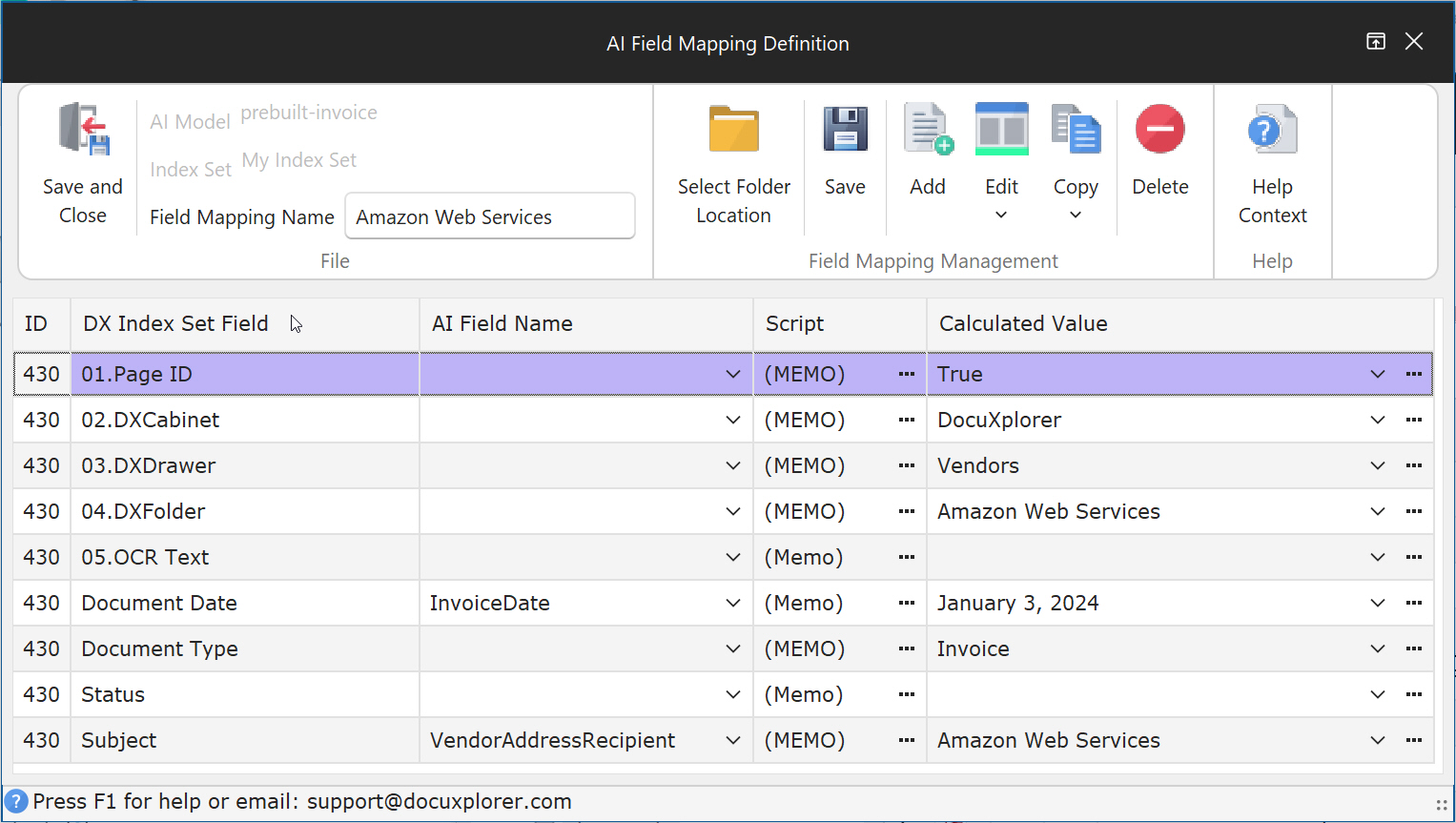
Dialog Goal:
This dialog allows you to Map collected by the AI Model and assign them to your DX index set fields. A document or a group of documents can have different rules applied by their Page ID criteria.
A page ID can get a single captured value like Company Name = "Mikes Sporting Goods" or a script that determined any criteria you can think of.
Menu Selections:
Save And Close: Saves the modified field mapping definitions and applies the collected Field Mapping to the selected document
AI Model: Displays the Ai Model you selected for processing.
Index Set: Displays the documents index set you selected for processing.
Field Mapping Name: This is the name of the mapping definition you create for each Field Mapping process
Select Folder Location: Allows you to pick a folder location in which the document should be saved. You can also customize via DX's scripts language
Save: Save the current Field Mapping definition to DX's database
Add: Allow you to create a blank Field Mapping definition if an existing once does not suite you needs.
Edit: Allow you to select an existing Field Mapping definition for editing
Copy: This helps speed up the Field Mapping process by using another document's Field Mapping definition so you customize it for another document type
Delete: Allows you to delete the current Field Mapping definitions
Help Context: Brings up this screen for quicker access
Field Mapping definition Columns
DX Index Set Field : Represents user defined Index Fields and DX control
fields for page indentification and storage location in DX.
01. Page ID: Allow you to define what document or group of documents should be process with the current field mapping definition.
02. DX Cabinet: This defines the cabinet location to store the document. If the location does not exist it will be created during processing.
03. DX Drawer: This defines the drawer location to store the document. If the location does not exist it will be created during processing.
04. DX Folder: This defines the folder location to store the document. Sub folder can be assign by using the backslash e.g. Folder\Sub Folder. If the location does not exist it will be created during processing.
05. OCR Text: This field is automatically populated with the "Context" AI Field value. This data is used by AI Insights and DX's Classic Find document process.
User Defined fields: The rest of the listed items are based on the User defined Index Set Fields associated with the selected document to be processed.
AI Field Name: This field allows you to select from a drop down list a values located by the AI Capture service. The drop down list shows three columns, Field Name, Values and Description of the value if available for each prebuilt model listed above.
Script: This field uses the DX's scripting engine to produce custom results based on built-in and used defined functions.
Calculated Value: This field shows the value assigned by the AI Field Name or the value produced by the custom script.
Data stored by Form Recognizer
For all analysis: To facilitate asynchronous analysis and checking the completion status and returning the extracted results to the customer upon completion, the data and extracted results are stored temporarily in Azure Storage in the same region. All customers in the same region share the temporary storage. The customer’s data is logically isolated from other customers with their Azure subscription and API credentials.
For customer trained models: The Custom model feature allows customers to build custom models from training data stored in customer’s Azure blob storage locations. The interim outputs after analysis and labeling are stored in the same location. The trained custom models are stored in Azure storage in the same region and logically isolated with their Azure subscription and API credentials.
Deletes data: For all features, the input data and results are deleted within 24 hours and not used for any other purpose. For customer trained models, the customers can delete their models and associated metadata at any time by using the API.
To learn more about privacy and security commitments, see the Microsoft Trust Center.