
This topic refers only to program developers
API Samples -.dx file examples:
In the ..DXDocs\DXInstall\Templates\API Sample folder are .dx files. These files are provided so you can test and learn from example .
Provided below are the names for the .dx sample files and descriptions of what happens when they are executed. Each of these examples executes the same steps as the DocuXplorer interface. The only exception to this is when you assign information needed by the process, as a result the user will not be prompted for information already provided. As the API follows all interface rules, an individual’s security or user settings may prohibit or perform differently for different users. For example: The Quick Scan process my show or hide the twain interface when scanning a new document depending on the user's settings.
DX Add Document From Quick Scanner.dx:
This displays the Select Folder Location dialog for a user to select a folder to store the scanned document. It will then display the user's default twain interface for scanning. Once the scan has been completed the DX’s Append Scanned Document dialog is shown for the user to either continue scanning or start the process of Indexing and saving the document.
DX Add Document From Scanner.dx:
Performs the same steps as above but shows all scan dialogs
DX Add Document Import File.dx:
This will present the user with the Select Folder Location dialog for a user to select the folder to store the imported document, It will then display the Import File dialog prompting the user to select a file to import. Once the file is selected the user completes the indexing process and saves the document.
DX Add Document Import No User Interface.dx:
This .dx file imports a document without any user interaction. All parameters needed for the process have been defined. You will need to set the value for the key Item “DXFileName” so that an error is not raised.
DX Search All Fields ask for User For Criteria.dx:
This .dx displays the Find Document dialog and makes the “Full Text Search” tab visible for user input
DX Search All Fields.dx:
This .dx displays the Find Document dialog and makes the “Full Text Search” tab visible and locates all documents in the Library that contain the word “test”
DX Search By Fields.dx:
This .dx displays the Find Document dialog with the “Search By Field” tab visible and locates all documents that contain the value ‘Test” in the subject field, located in the Library. If only a single document is found the document is automatically displayed.
DX Search By Fields-Delete Document.dx:
This .dx file performs the same task as “DX Search By Fields.dx” but deletes the document instead of displaying it
DX Search By Fields-Export Display as HTML.dx:
This .dx file performs the same task as “DX Search By Fields.dx” but exports the Document List View to a file as defined by the “FileName” Key item
DX Search By Fields-SendTo Emails as Link.dx:
This .dx file performs the same task as “DX Search By Fields.dx” but emails all documents as a link file
DX Search By Fields-SendTo Folder as File.dx:
This .dx file performs the same task as “DX Search By Fields.dx” but saves all documents to a folder as defined by the “TargetDir” Key item
DX Search By Fields-SendTo Folder as File.dx:
This .dx file performs the same task as “DX Search By Fields.dx” but converts all documents to .PDF and saves them to a folder defined by the “TargetDir” Key item
ShowHideDesktop-Toggel.dx:
This .dx file changes the visibility state of the DX Desktop
========================================================================================================================
COM Examples:
In the ..DXDocs\DXInstall\Templates\API Sample folder is an executable called DXComTestProject.exe. This application shows how a .dx files can be executed under COM control.
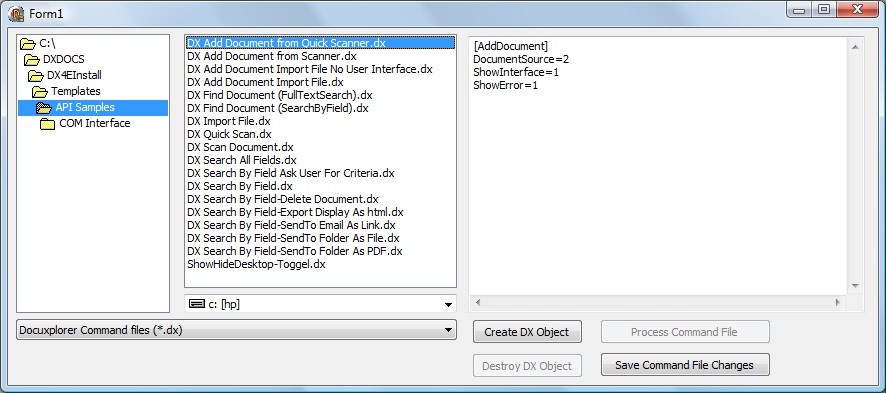
In the Tree Window at the left select the folder containing the .dx files to used in the COM object.
Once a folder is selected the center window will display available .dx files
When a .dx file has been highlighted in the center window the commands contained in the .dx file will be displayed in the window at the right of application.
Buttons at the bottom right allow:
Create DX Object: Instantiates DocuXplorer as a COM Object
Destroy DX Object: Performs the inverse of the create button. this item is grayed out until a COM object has been created.
Process Command File: execute the select .dx file. This item is grayed out until a COM object has been created.
Save Command File Changes: Save the change you made for the select .dx file.