
This Help topic refers to the following editions:
þ Enterprise þProfessional þ Personal þ Small Business
This Help topic refers to DocuXplorer Enterprise, and Professional only when the optional Workflow has been purchased and registered.
From the DocuXplorer Desktop Ribbon Tab select Home | Options | Workflow Settings
The  symbol next to a property group indicates that settings are applied globally
to all users. If the symbol is absent, settings apply only to the currently
logged-in user.
symbol next to a property group indicates that settings are applied globally
to all users. If the symbol is absent, settings apply only to the currently
logged-in user.
Only administrators have the authority to modify these properties.
Workflow settings exist to bridge the gap between a standardized product behavior and users individual needs. They cover topics Workflow items, and E-mail Settings.
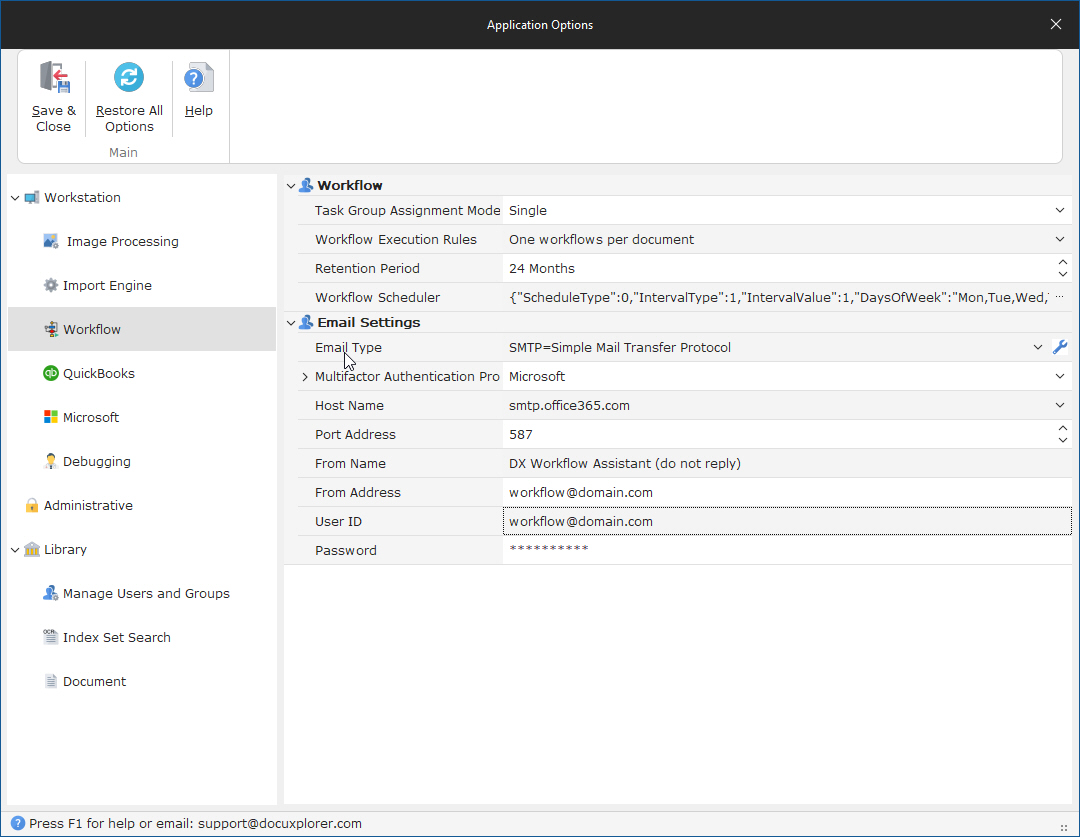
The Workflow and Email Settings within DocuXplorer settings serve as the central control hub for automating document management and communication protocols. By defining how tasks are assigned and executed—such as limiting actions to a single workflow per document—these configurations ensure data integrity and prevent processing conflicts. Furthermore, the integration with SMTP services and Microsoft Multifactor Authentication establishes a secure bridge for the system to distribute automated notifications, allowing the platform to act as a hands-free assistant that keeps users informed of critical updates and pending tasks.
1. Workflow
In DocuXplorer, Task Group Assignment Mode is a workflow setting that determines how a task is handled when it is assigned to a group of users rather than a single individual.
When you assign a task to a group, the system follows one of two primary logic modes to manage how those tasks are created and completed:
Multi Mode (Multiple Tasks) -
In this mode, the system creates a separate, independent task for every single member of the group.
How it works: If a group has five members, five identical tasks are generated. Each member must complete their own version of the task.
Workflow Logic: Because there are multiple results, DocuXplorer uses a "majority" rule to decide where the workflow goes next. Example: If four users complete a task and the first three select "Accepted" while the fourth selects "Rejected," the workflow moves forward as "Accepted" because it held the majority at the time the threshold was met.
Best
for: Situations requiring a vote, a multi-signature approval,
or where every team member must acknowledge a document.
Single Mode (Pool Task)
In this mode, the system creates one single task that is visible to everyone in the group.
How it works: The task sits in a shared "pool." Any member of the group can open it, work on it, and finish it.
Resolution: Once the first person completes the task, it disappears from the task lists of all other group members.
Dynamic Membership: If you add or remove users from the group while the task is active, the task will automatically appear or disappear from those users' lists accordingly.
Best for: "First-come, first-served" scenarios, such as a general "Accounting" inbox where any clerk can process an incoming invoice.
Retention Period: Set to 24 Months. The system will store workflow history and logs for two years. After this period, legacy workflow data may be purged to maintain database performance.
Scheduler: This field allows the administrator to define how offen running workflow should be check for expiring tasks. The recommend time period is every 24 hours.
2. E-mail Server Settings
The system uses these credentials to send automated notifications, such as task alerts or status updates. Click here for directions.
The Workflow engine uses the same E-mail settings as a traditional user account but with the personality of workflow manager. We recommend that the from name be set to DO NOT REPLY so user don't try respond to this entity.