
This Help topic refers to the following editions:
þ Professional þ Enterprise
Administrators will use the Document Permissions Item located by right clicking the Document and selecting Document Properties, to add or delete Users and Groups and set permissions.
Each DocuXplorer object has its own set of properties and permissions. By default, an object's properties: users, groups and permissions are inherited from its parent object. When a document that is inheriting its permissions from a parent is move,d it will then inherit the permissions of the new parent.
Before making any changes to an object's permission properties an administrator must shut off inheritance by removing the check from the "Inherit permissions from parent" box.
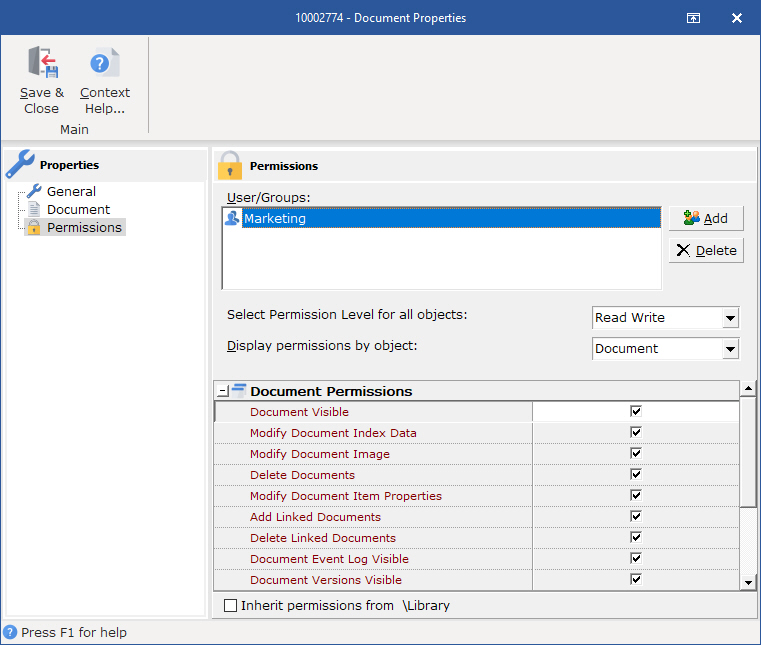
The Document Properties/Permissions dialog box consists of:
Users/Groups dialog - in this area an administrator can add and delete users and groups for the Document.
Select Permission Level for all objects - this field allows the use of preset permission levels. Preset Permission Levels can also be used as a starting point for creating Custom Permission Sets.
Display permissions by object - allows an administrator to view permissions either by a specific object or for all objects at the same time.
Document Permissions - the permissions that can be set for the Document Object
Document Visible - if checked the document will be visible to that user or group. Leaving the box unchecked will make the document and its index information invisible to those users.
Modify Document Index Data - if checked allows a user or group to make modifications to the index field data associated to the document.
Modify Document Image - if checked allows a user or group to make modification to a document image or attachment.
Delete Document - if checked allows a user or group to delete the document.
Modify Document Item Properties - If checked, users will be able to change the index set, default image viewer, file extension, and number of versions. Allowing a user to change the index set of an existing document will allow that user to see some index set fields they may not have explicit permission to see. Because of this, this option is unchecked by default.
Add Linked Documents - If Checked, users will be able to Add new linked documents to this document, so that when a link is searched, this document will be visible to the user if they have permissions to view it.
Delete Linked Documents - If Checked, users will be able to remove the link for documents that are linked to this document.
Document Event Log Visible - if checked allows a user or group to view Document Event Logs.
Document Versions Visible - if checked allows a user or group to view document versions window.
Check-out/Check-in Documents - if checked allows a user or group to check documents in to or out of the Library.
Send Document To (Printer, Email, etc.) - if checked allows a user or group to use Send To document functions.
Duplicate Document - if checked allows a user or group to duplicate the document.
Cut, Move, Place in Folder Document - if checked allows a user or group to move a document or Saved Search Document, as well as cut the document to paste into another folder and use the "place in folder" menu option from the document viewer to move the document.
Copy, Save As, Convert, or Merge Documents - if checked allows a user or group to copy, convert, merge, or save the document as a new document or Saved Search Document.
Find Document - Since Documents can be located across Folders and Drawers within a cabenit, security for printing Document List View and Export Document List Viewfor individual Folders cannotorced. Therefore , these security options allow the administraor greatoer control based on the requirement if users should be able to access these functions within the Find Document dialog box.
Print Document List View - if checked allows the user to seleect the Print Document List View within the Find Document dialog box.
Export Document List View - if checked allows the user to Export Document List View within the Find Document dialog box.
Modify Permissions Properties - Allows specified users or groups to modify security permission properties
Inherit permissions from parent - if checked the document inherits permissions from its parent. To change permissions for a document uncheck this box.
Tip:
When Users/Groups are added or a change is made to permissions they do not take effect until the Library or specific Cabinet is closed and reopened at a workstation. When changes are made we recommend that administrators instruct all users to close DocuXplorer on their desktops and reopen.
